What QuickTenders fills in for you, what only you can decide, which forms come back needing your signature, and what to have ready before you start.
~8 min read · Updated 30 September 2026
Listen to this guide · 10:38
Applying for a government tender through QuickTenders is a preparation workflow, not a submission service. QuickTenders reads the tender, opens a workspace for it, fills what it can from your company records, asks you for what it cannot, assembles one Submission Pack, and tells you what is still open before you download it.
Lodging the bid with the buyer is yours to do.
Before you start: your company records
The pack is only as complete as your records. Everything QuickTenders writes about your company comes from what you have uploaded under Biz Enablement, so this is where the quality of a bid is actually decided.
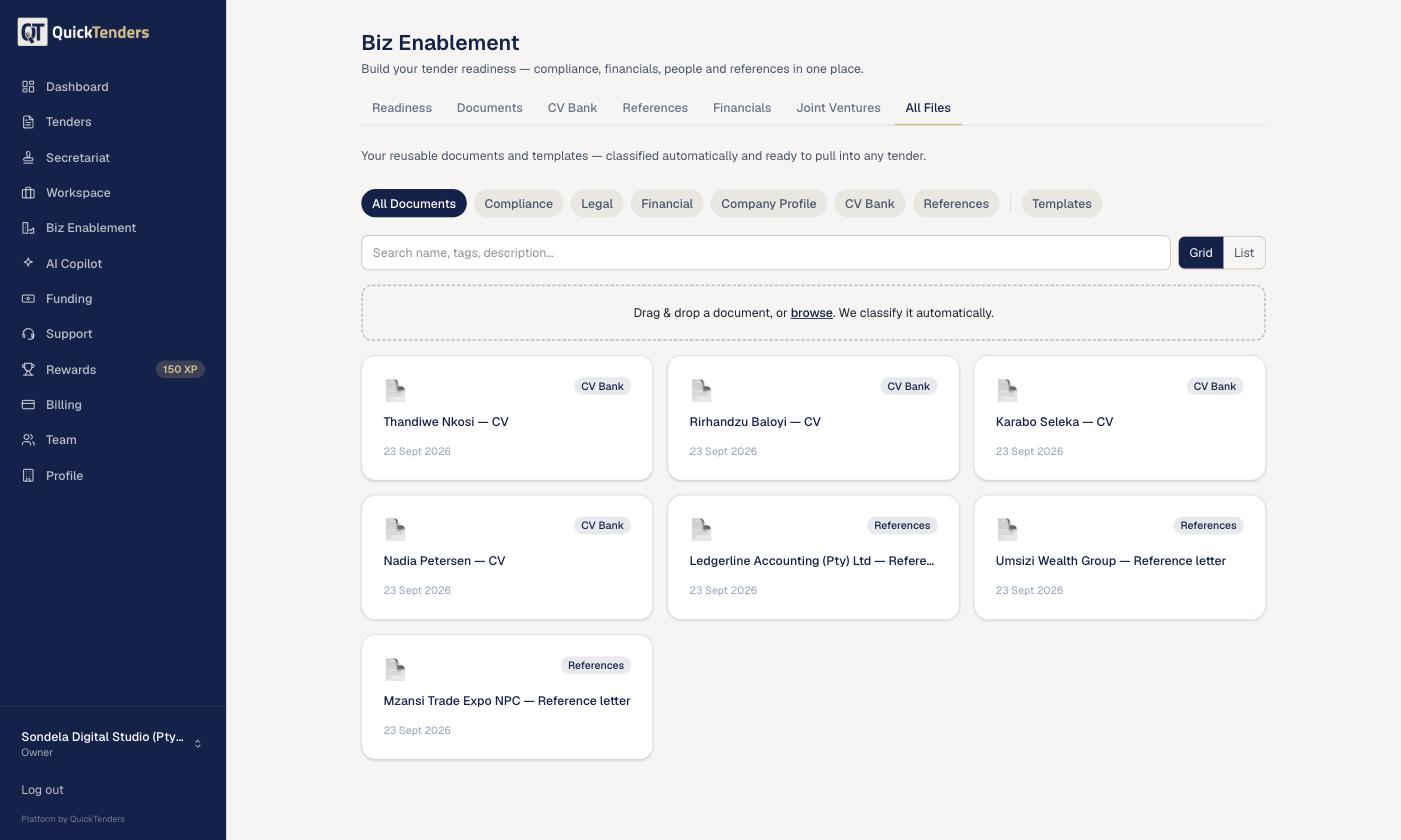
Step 7 — Your documents: upload once, classified automatically, reusable in every tender.
Biz Enablement — Documents. Each uploaded document is read once and its details become available to every tender you apply for.
Have these current before you open a workspace:
A current Tax Compliance Status (TCS) PIN. An expired PIN appears as a blocking issue in Final Review, and buyers reject bids without a valid one.
Your CIPC registration certificate and CSD report, so your registration number and supplier number are on record and can be printed onto forms.
Your B-BBEE certificate or sworn affidavit. The preference-points form — SBD 6.1 or the buyer's equivalent — is completed only from a certificate on file.
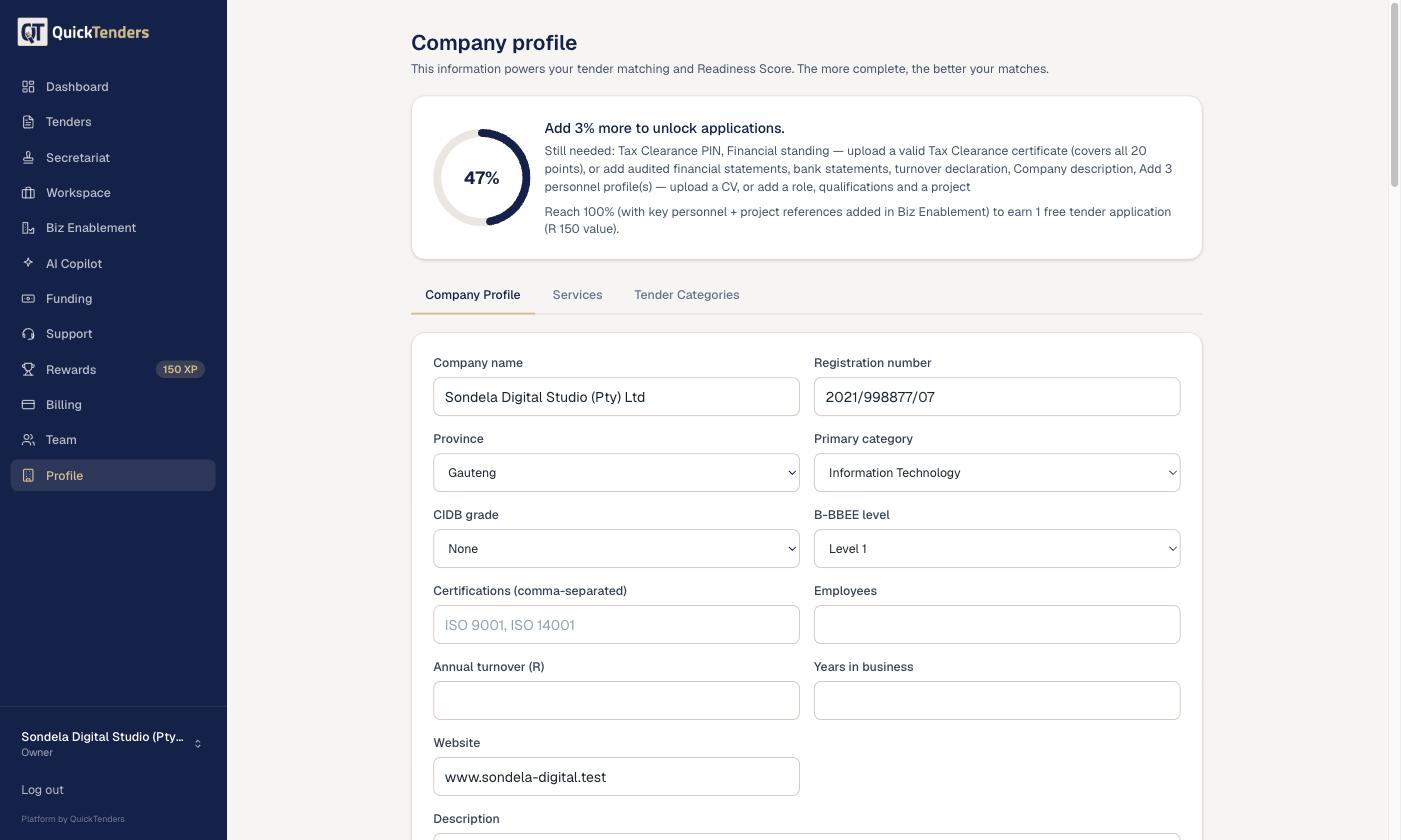
Your directors, and the person who signs your bids. Forms ask for directors, and on some forms their identity numbers, and for the authorised signatory's name and capacity. You enter both yourself in your Company Profile. QuickTenders never takes them from a CV or any other uploaded document.
Step 9 — Company information: this is what tender matching and your readiness score are built from.
Company Profile — company information, directors and authorised signatory.
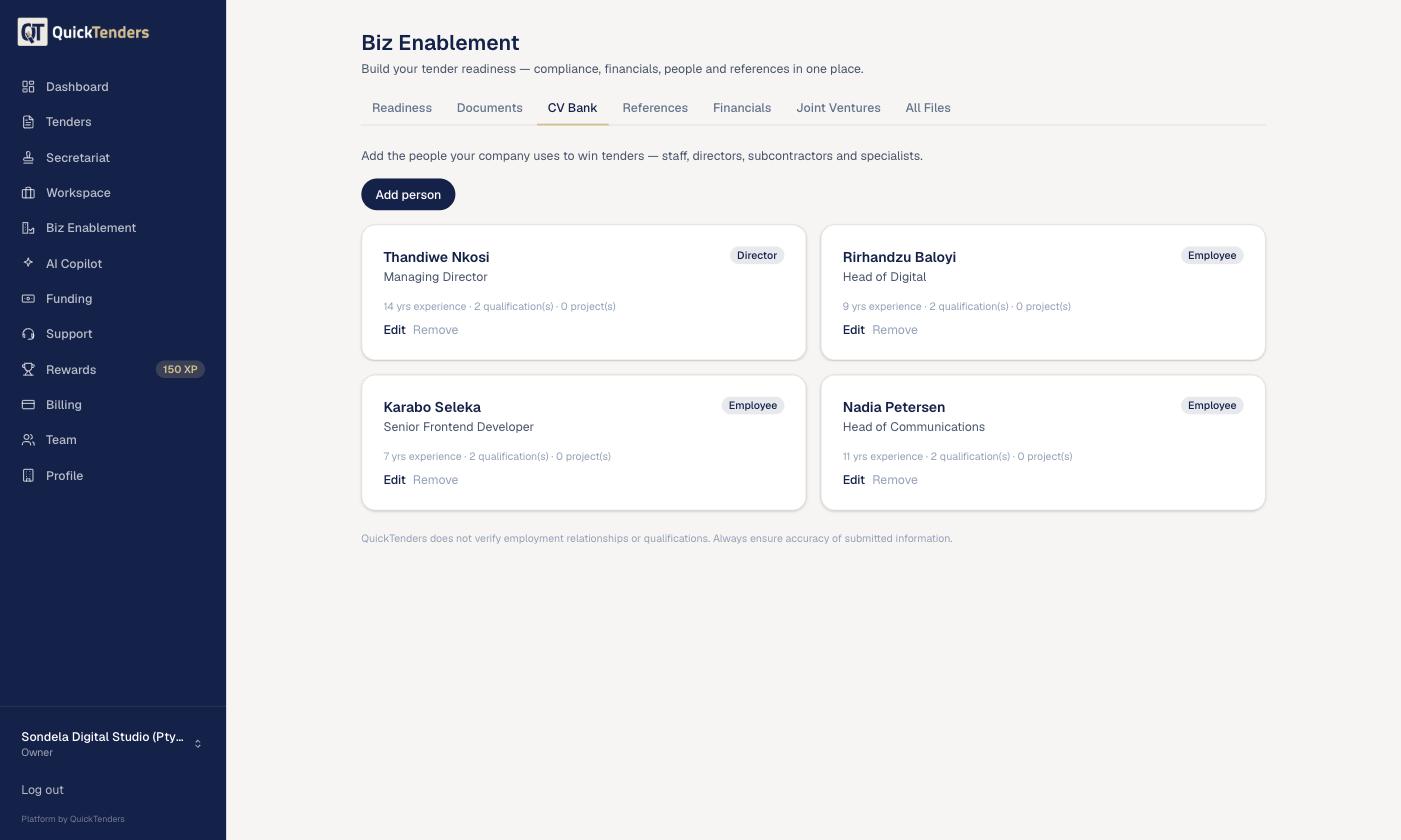
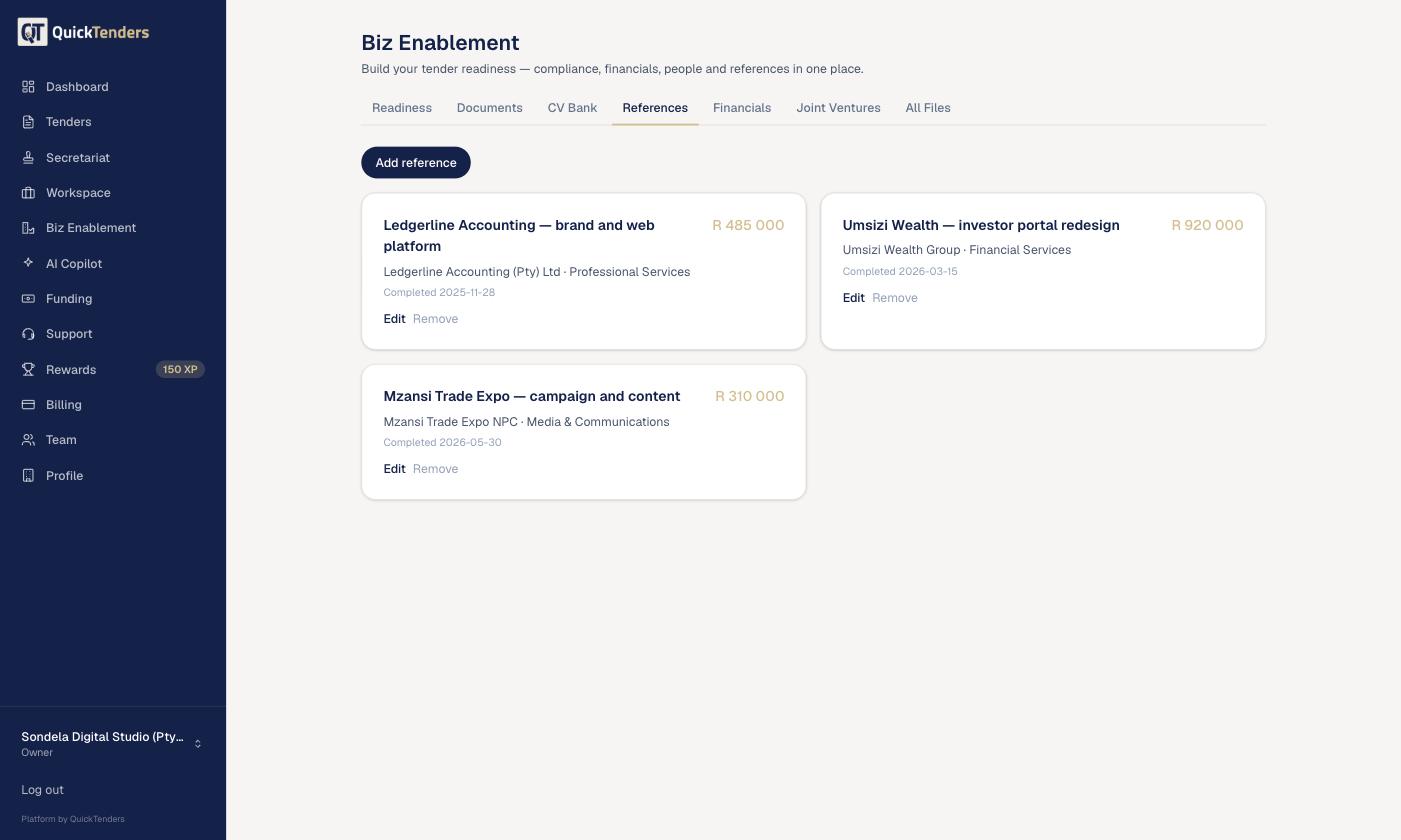
CVs for your key personnel, and at least three project references. Most tenders ask about the people who will do the work and what you have done before.
Step 10 — Key personnel: the people your bids name, with their qualifications on file.
Key Personnel — names, roles and qualifications, used in the personnel section of your bid.
Step 11 — Experience and references: the past work your bids can cite, with the letters behind it.
Experience & References — the projects that support your experience claims.
Your company logo, if you want it on the cover, dividers and generated pages of the pack.
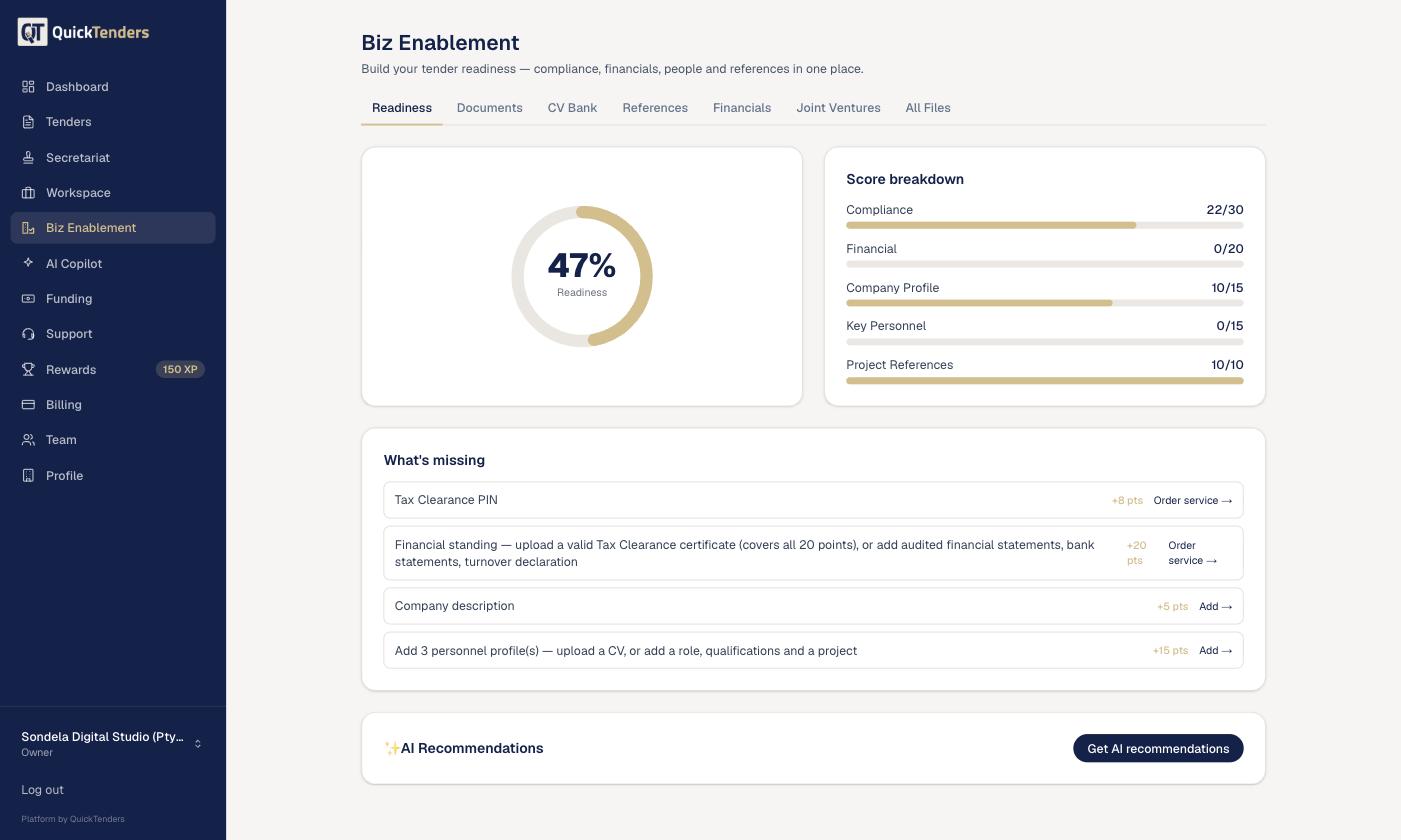
Step 8 — Readiness: the score is earned out of what applies to your business, and it tells you what is missing.
Company Profile — the completeness view showing what is on record and what is still missing.
Step 1 — Find the tender and check the fit
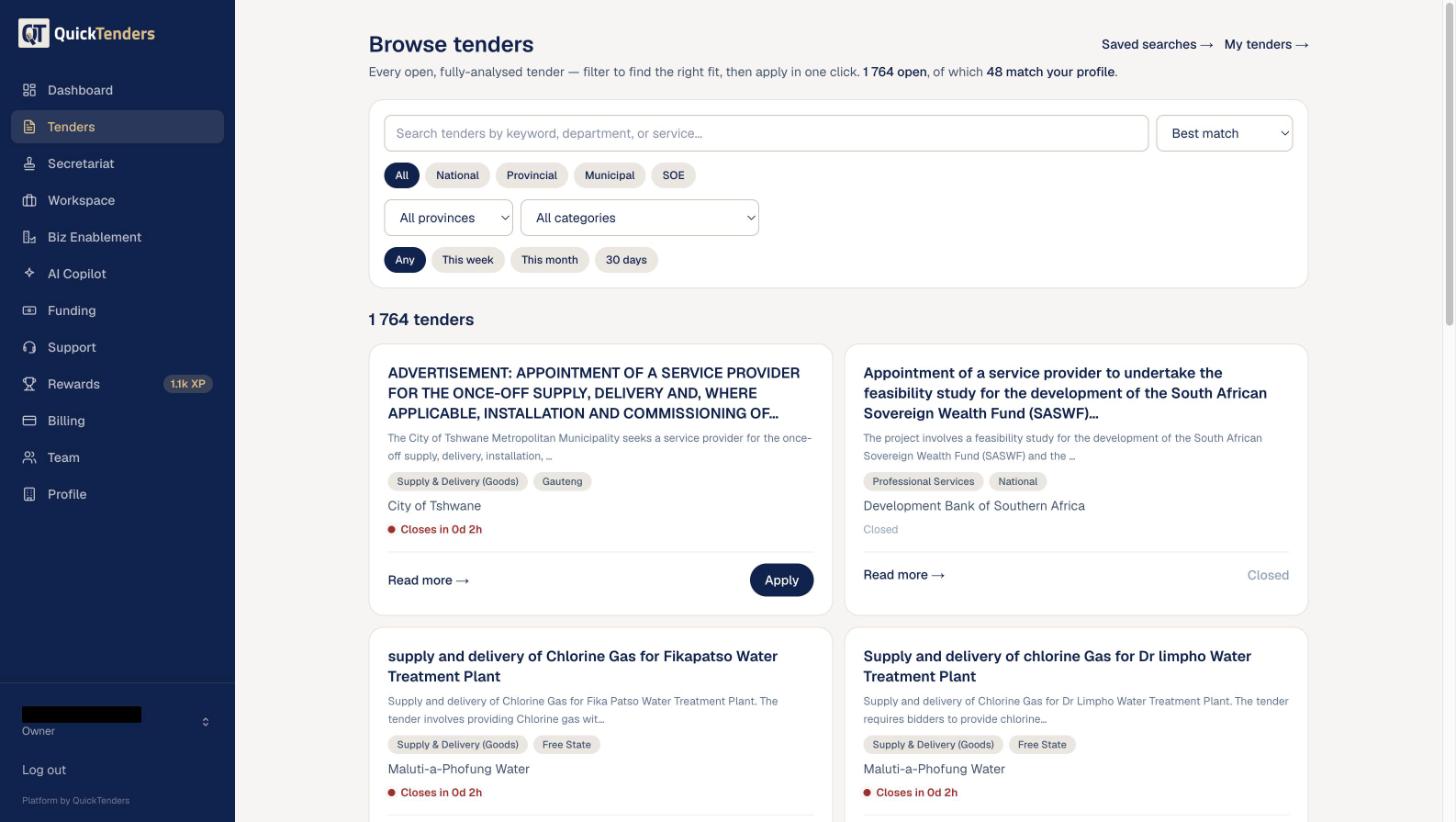
Open the tender from your matches or from Browse tenders.
Step 1 — Browse tenders: filter the open pool, then open the one you want.
Browse tenders — filter by province, category, buyer type and closing date.
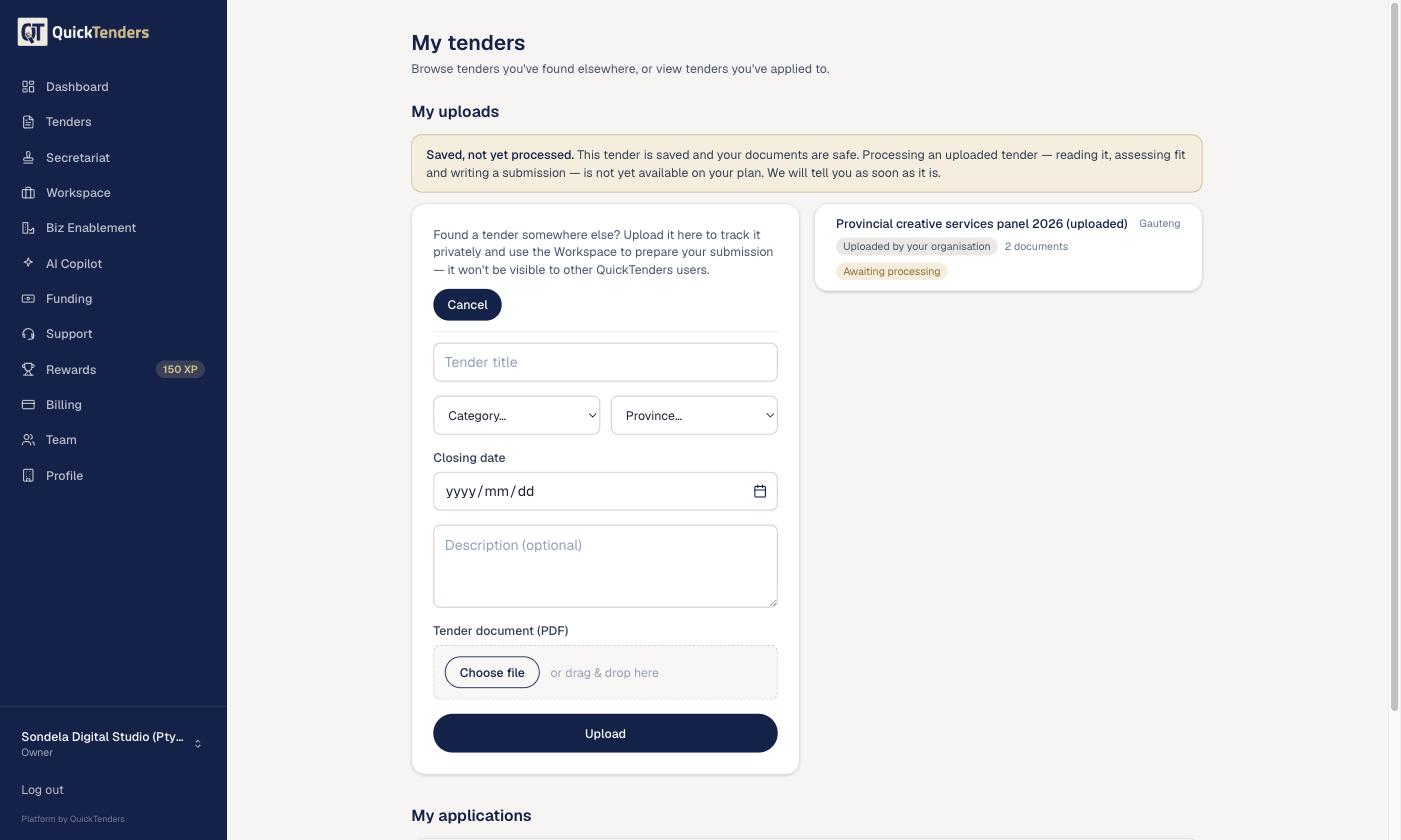
If you found the tender elsewhere, upload it yourself under Upload tender and it enters the same workflow.
Upload tender — bring a tender QuickTenders has not acquired into the same workflow.
Upload tender — bring a tender QuickTenders has not acquired into your workspace. It stays private to your organisation.
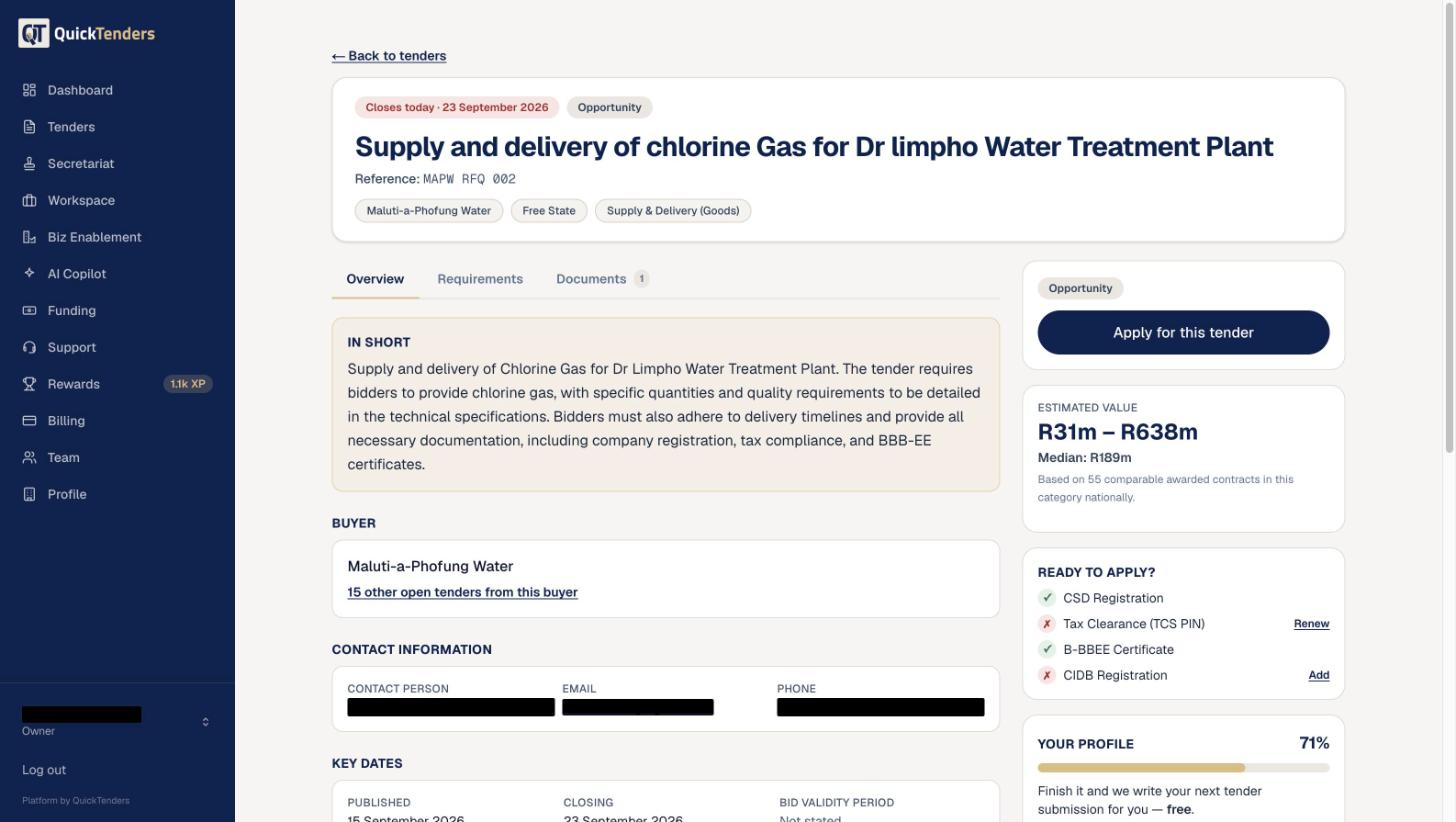
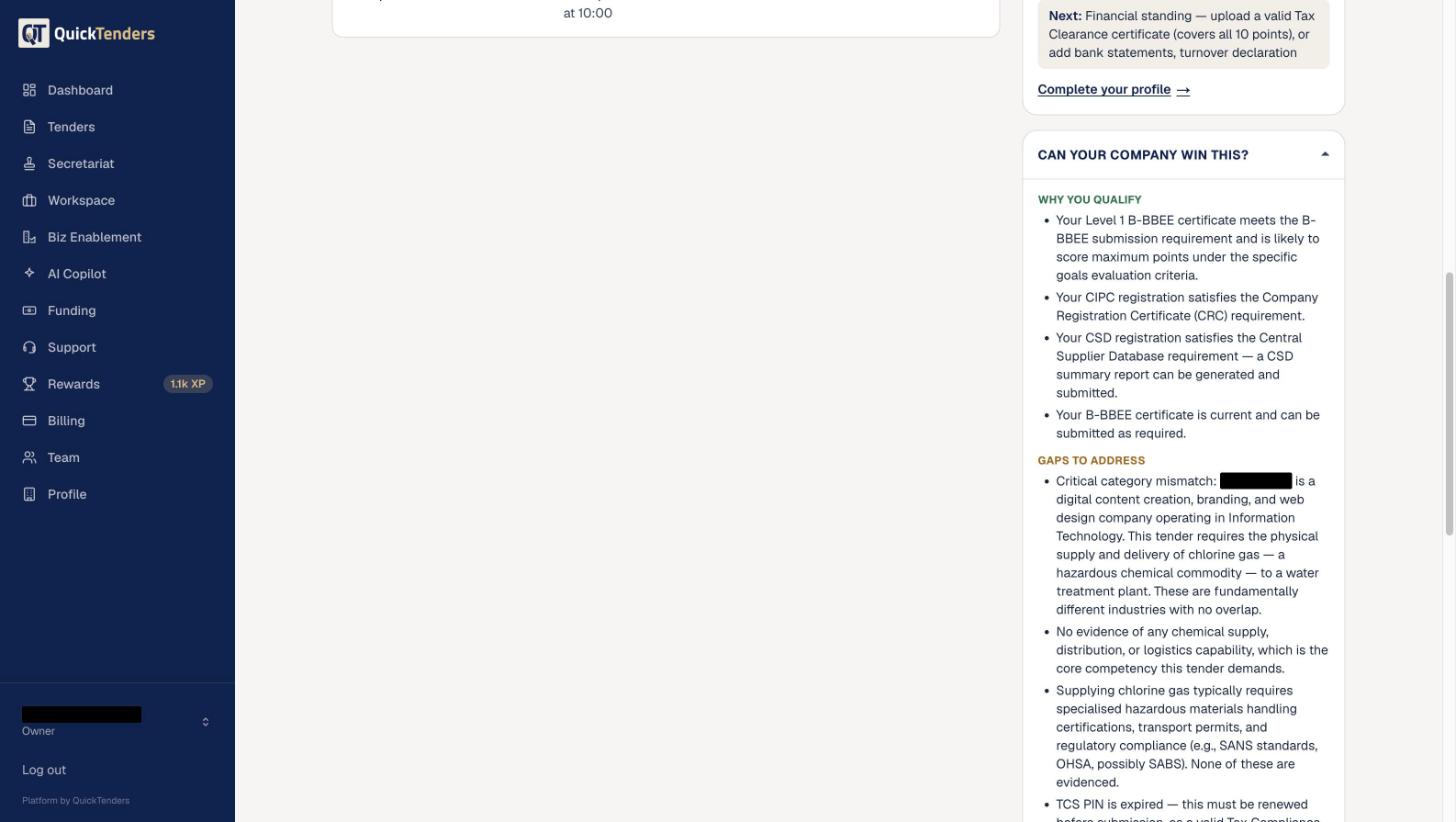
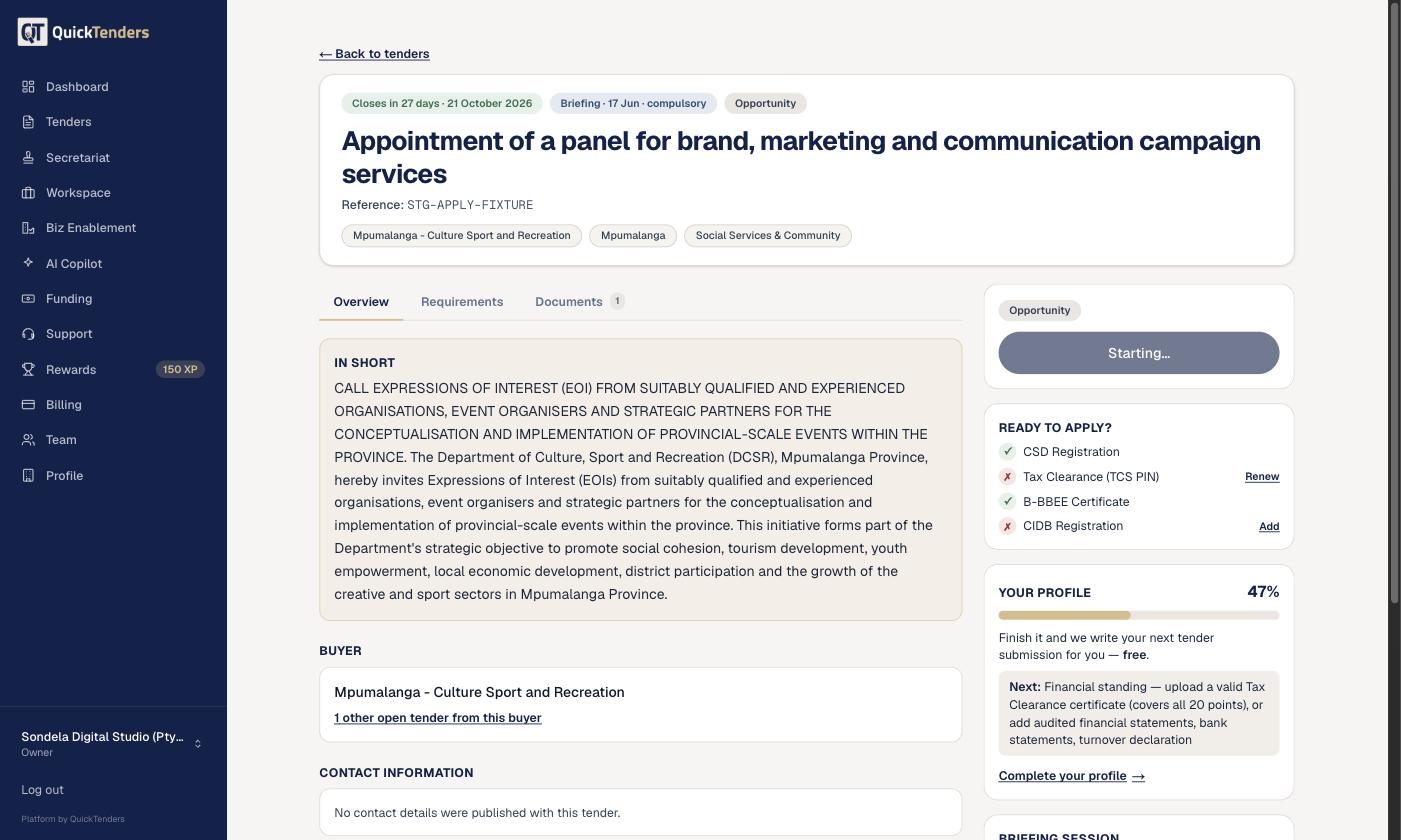
The tender page shows what QuickTenders read from the buyer's own documents: the closing date and time, the submission method, the compulsory requirements, the forms required, and the evaluation criteria with their points.
Step 2 — Tender detail: what the buyer wants, and whether you are ready to bid.
Tender detail — buyer, reference, closing date and time, estimated value from comparable awarded contracts, and whether you are ready to apply.
Before you commit, QuickTenders runs a Tender Fit assessment against your Company Profile — a score out of 100 with its reasons, separating what it can prove from what it simply does not know.
Step 3 — Fit assessment: proven strengths and open gaps, side by side.
Tender Fit — what the assessment could establish, and what it could not.
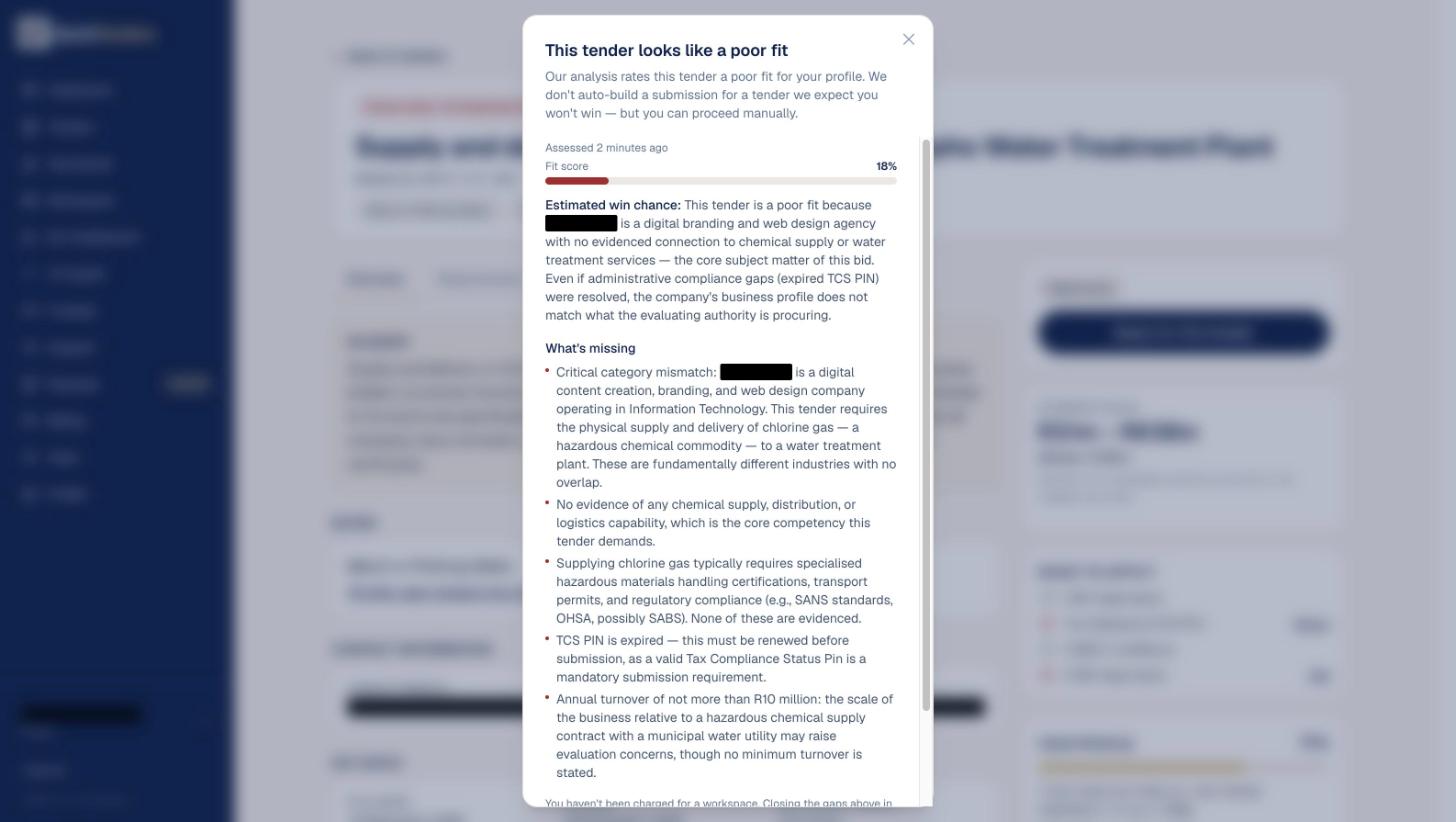
A poor-fit verdict is a warning, not a wall. You decide whether to pursue it, and your decision is kept with the workspace.
Step 3 — The fit gate: QuickTenders says so before you spend anything, and you can still proceed.
A poor-fit warning. You can continue if you judge the opportunity worth pursuing.
On the Free plan, or beyond your plan's monthly allowance, applying uses a free credit if you have one, or a single pay-as-you-go charge. The price is shown before you confirm.
Step 4 — Apply: one click creates the workspace for that tender.
Apply — the workspace opens for this tender.
Step 2 — The workspace
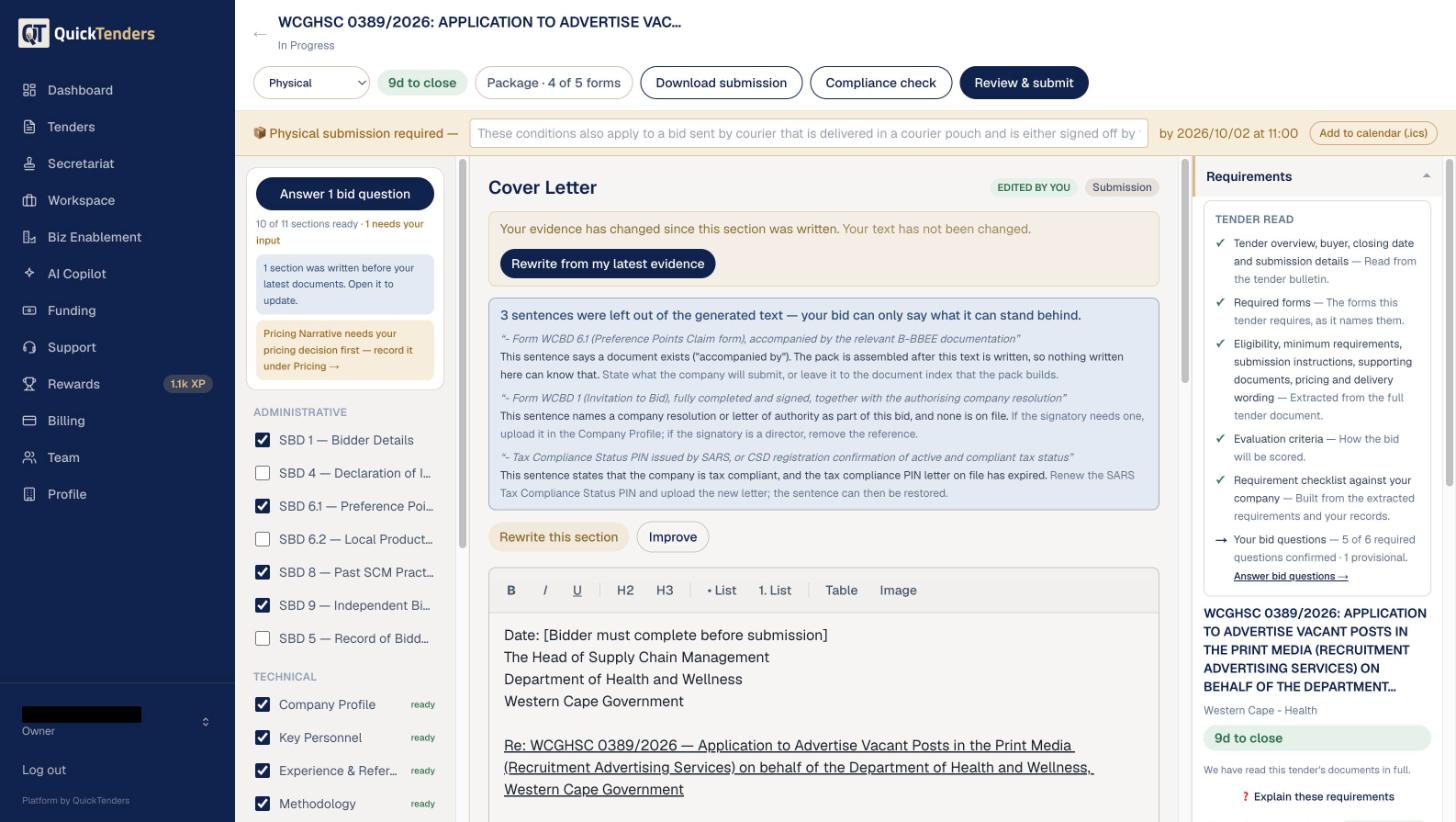
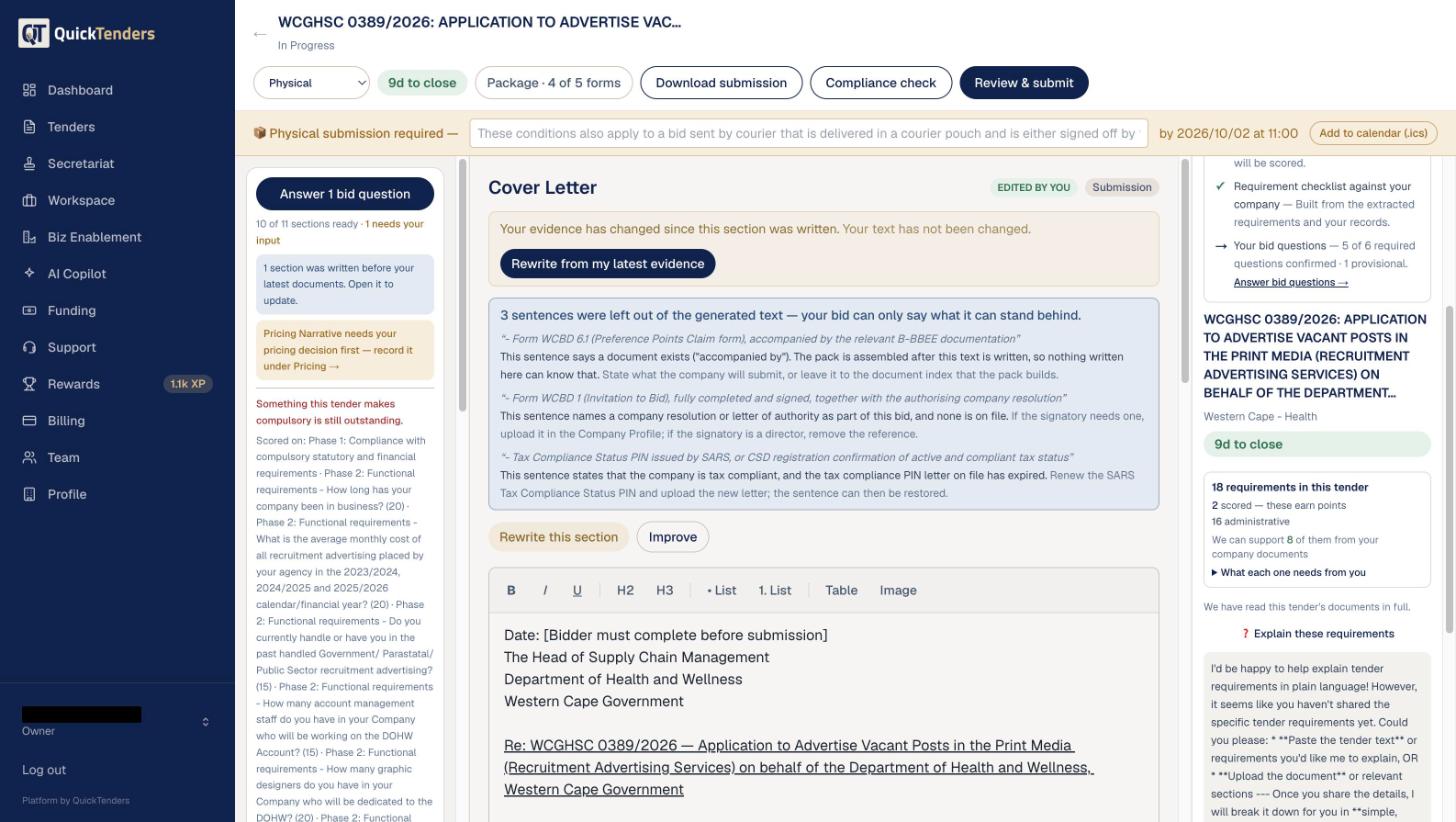
A Tender Workspace opens with everything for this bid in one place: the sections on the left, your working area in the middle, and what the tender requires on the right.
Step 5 — The workspace: sections, editor and requirements in one place.
The Tender Workspace.
The requirements panel is what QuickTenders read from the tender, sorted so you can see what is compulsory, what earns points, and which forms the buyer expects back.
Step 6 — Requirements: what is scored, what is administrative, and what each one needs from you.
Requirements — counts by type, evaluation criteria with their points, and the forms this tender requires.
Step 3 — Answer the Bid Questions
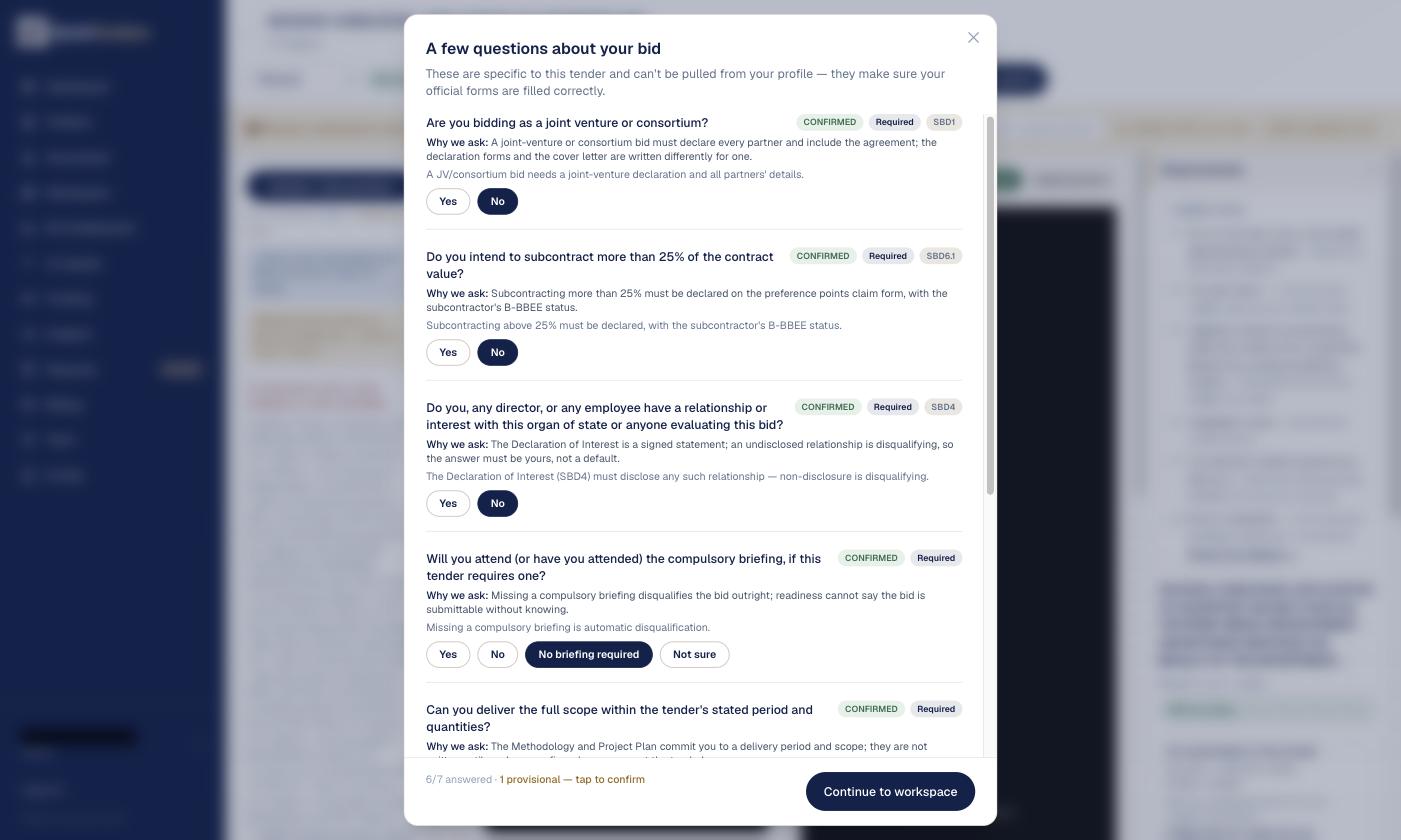
The first thing the workspace asks for is a short set of Bid Questions — the things about this specific bid that no document can answer:
Are you bidding as a joint venture or consortium?
Do you intend to subcontract more than 25% of the contract value?
Do you, any director or any employee have a relationship with the buyer or anyone evaluating the bid?
Will you attend the compulsory briefing, if there is one?
Can you deliver the full scope within the stated period and quantities?
Is your line-item pricing ready?
Do you want to submit an alternative offer alongside your main bid?
Step 13 — Bid questions: the few answers only you can give, each tied to the form it completes.
Bid Questions — each tagged with the form or section that depends on it.
Each answer is unanswered, provisional or confirmed. A provisional answer is a placeholder; it stays listed in Final Review until you confirm it. A required question left unanswered holds back the sections that depend on it.
These are declarations you are making to a government buyer. QuickTenders will not answer them for you.
Step 4 — Record your pricing decision
Your price is your decision. Record the basis — lump sum, a rate, a commission percentage, or a priced schedule — and the figure under Pricing.
Where QuickTenders holds comparable awarded contracts it shows them as market context, labelled as such. It never proposes a price. The pricing narrative in your bid is written only once your decision is recorded.
Step 5 — Build the written sections
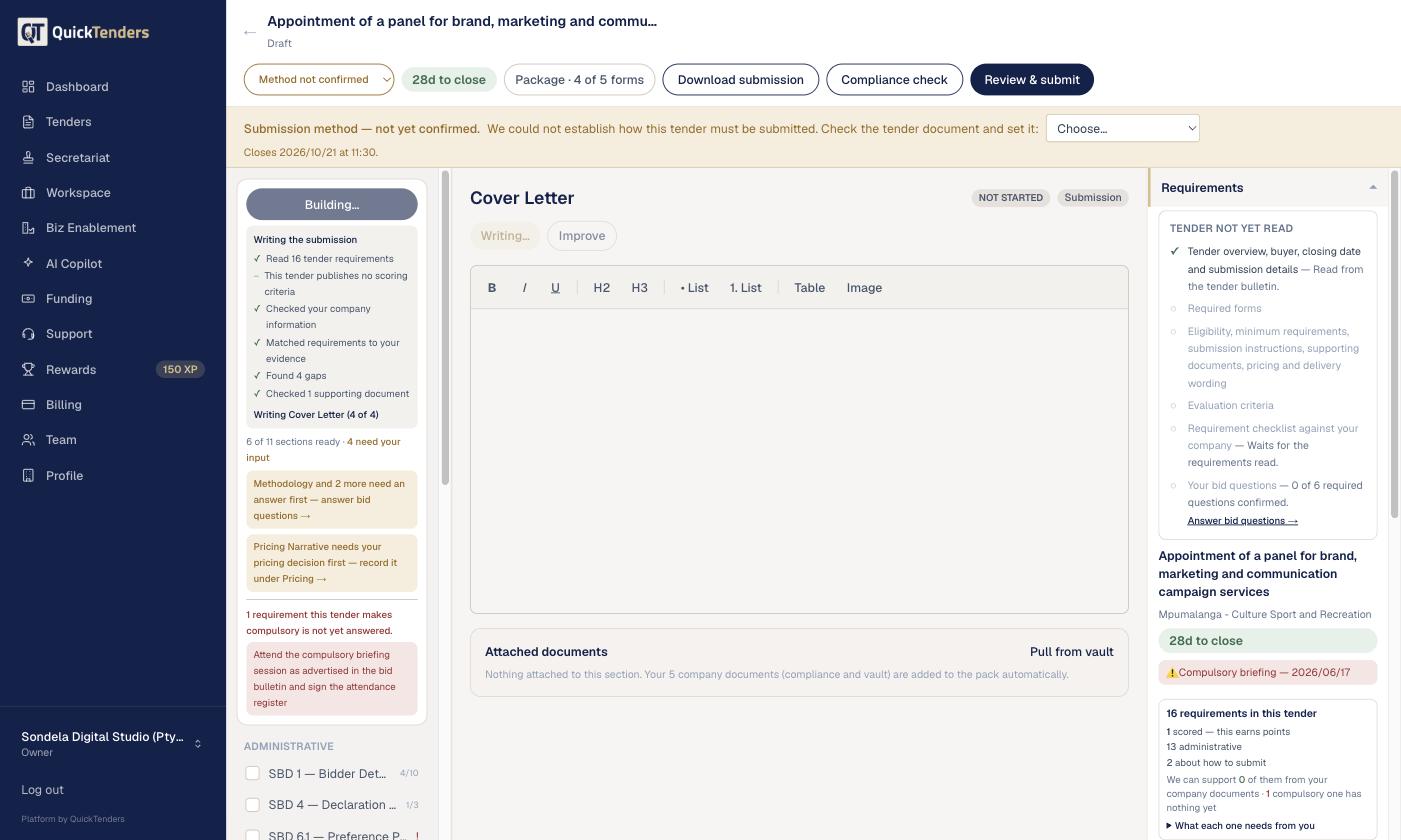
Build My Submission drafts the written sections — cover letter, company profile, key personnel, experience and references, methodology, technical proposal, project plan, health and safety, quality plan, local content and pricing narrative — from your Company Profile, your uploaded documents and this tender's requirements.
Step 14 — Build my submission: it writes section by section, and tells you which one it is on.
Build My Submission — the sections being written, one at a time.
Two rules govern what it writes.
QuickTenders will
QuickTenders will not
Write only what your documents support, and say so where they do not
Invent a fact, a figure or a certificate to fill a gap
Structure the technical proposal one subsection per evaluation criterion, in the buyer's order
State a contract period or quantity the tender itself does not state
Keep a bounded figure bounded — "not more than R10 000 000" stays exactly that
Turn a turnover ceiling into an exact turnover
Print your declared signatory in their declared capacity
Attach a job title to a person from a previous employer's CV
Read each section. Edit anything you would say differently — an edited section is yours and is never rewritten. Accept the sections you are happy with; accepted sections stop appearing as unreviewed in Final Review.
Step 6 — The forms
The pack carries the buyer's official forms.
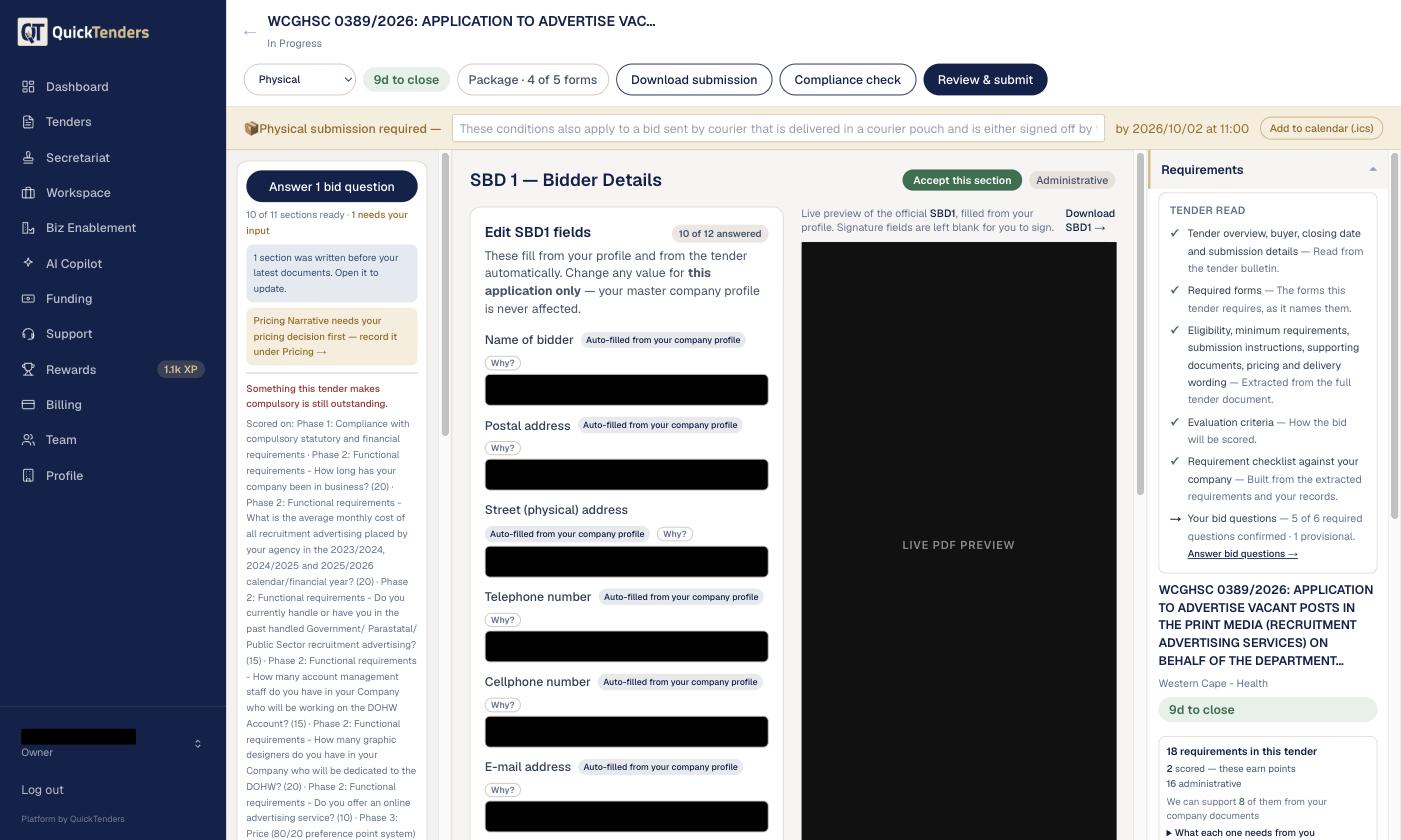
Where the tender uses the national SBD series and QuickTenders holds the template, the fields it can legitimately source are pre-filled: your legal name, registration number, CSD number, address, contact details, the tender reference and the closing date.
Step 12 — Forms: edit the values for this bid only, and watch the official PDF fill in beside you.
A form, with the live preview of the official document beside the fields.
Where the tender prescribes its own series — the Western Cape's WCBD forms, for example — the buyer's pages are carried exactly as supplied.
Three things are always yours: declarations, signatures and commercial figures.
A form in the pack is not a completed form. Final Review reports five separate facts for each one — physically included, populated, awaiting your action, completed, signed — and never calls a blank form complete.
You can also upload your own completed and signed copy of any form. It replaces the pack's pages.
Step 7 — Final Review
Before you download, Final Review runs every check and groups what it finds.
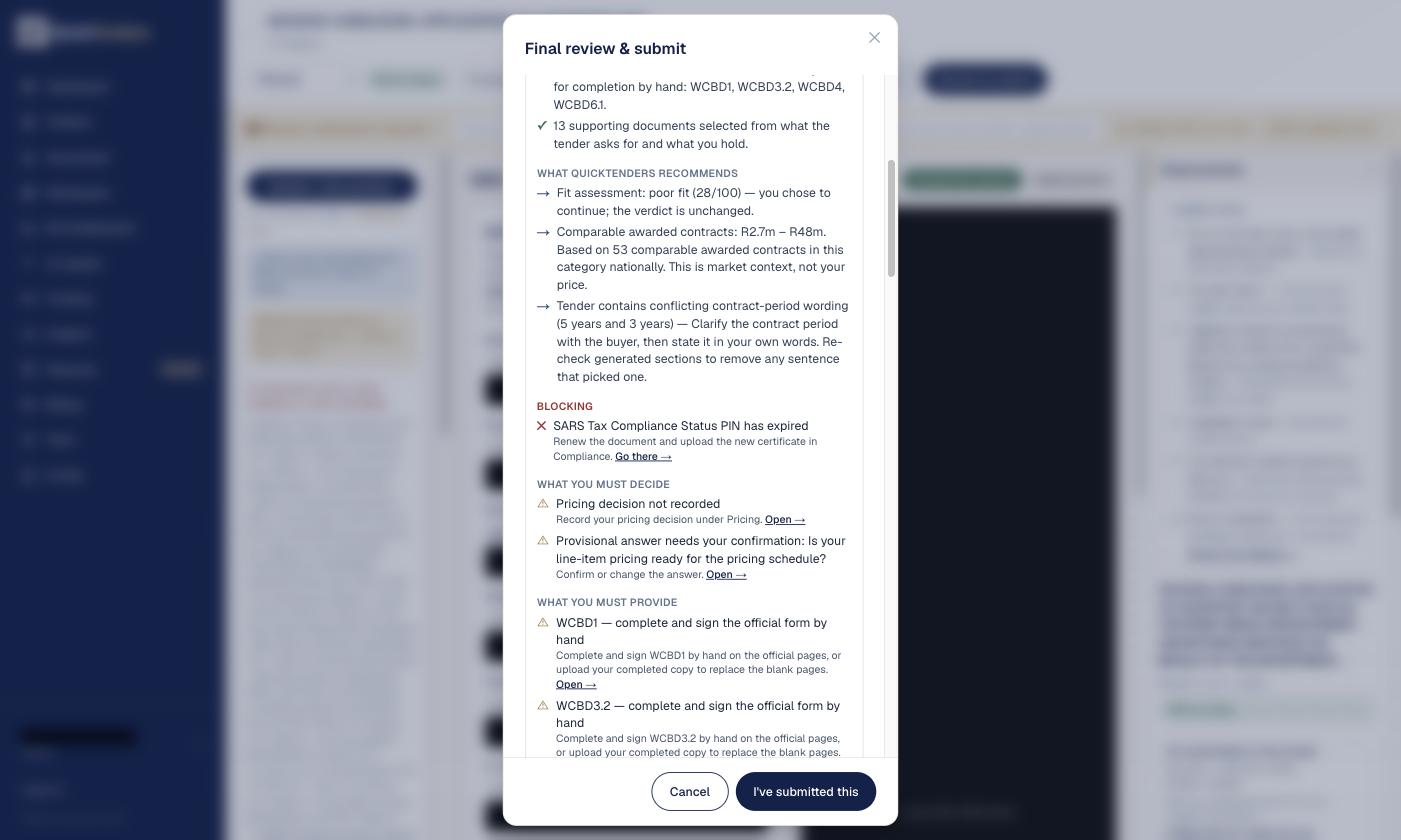
Step 16 — Outstanding items: what still stands between you and a submittable bid.
What is still open, grouped by who has to act.
What QuickTenders completed — sections written, forms prefilled, documents selected
What it recommends — the fit verdict, comparable-value context, any conflicts found in the tender's own wording
What only you can decide — pricing, bid answers, the fit decision
What you must provide — forms to complete by hand, signatures, missing documents, dates
What is blocking — an expired TCS PIN, missing signing authority, a closed tender
Step 17 — Final review: what was done for you, what is advice, and what is still blocking.
Final Review — every check, with its status.
The pack is in one of three states:
Submission Ready — nothing open.
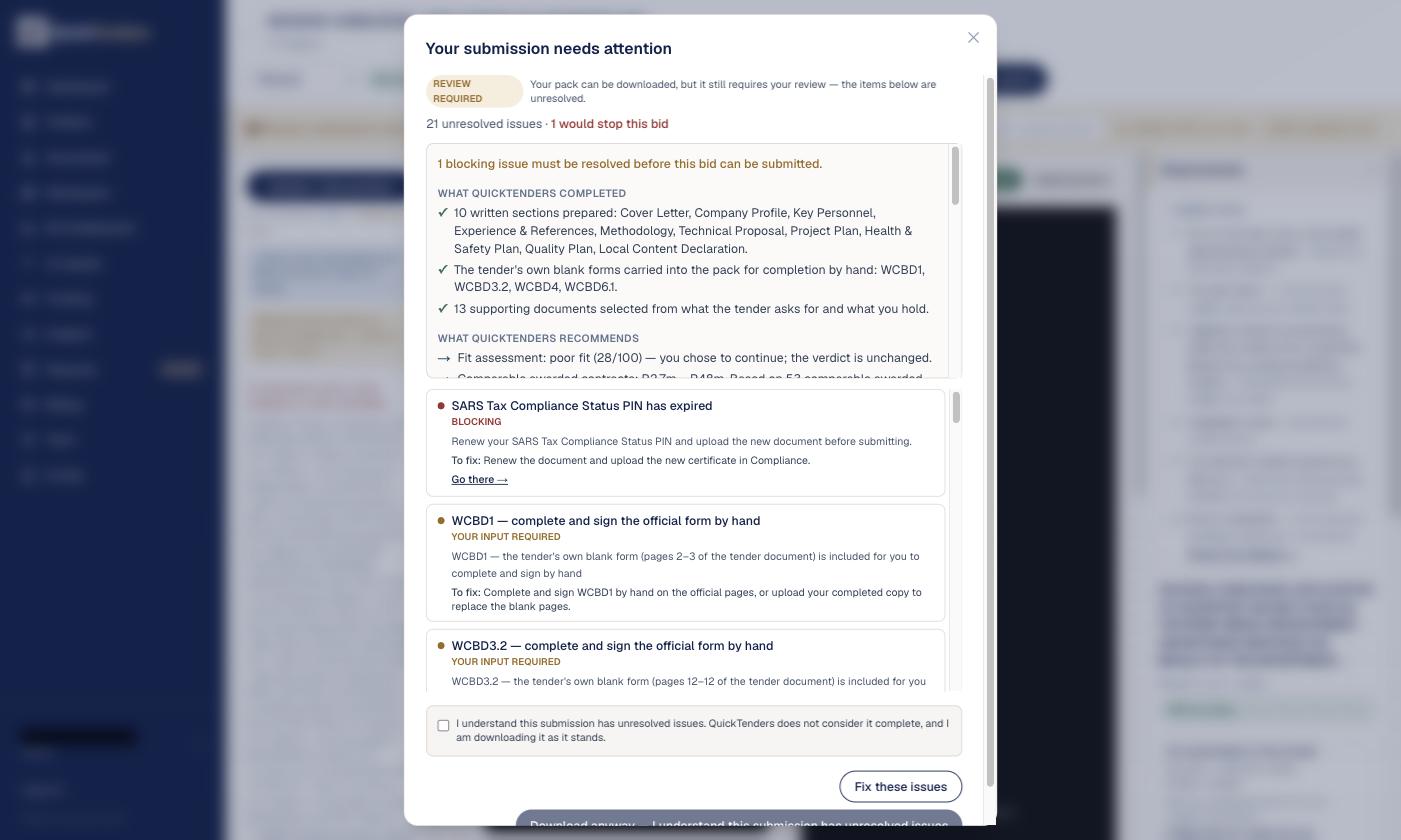
Review Required — items are open. You may download after acknowledging the list, and the acknowledgement is recorded with the exact items, the time, and the pack's fingerprint.
Blocked — the tender has closed, so no pack is built.
Step 18 — The readiness gate: you can still download, but only knowingly.
Downloading with items still open requires you to acknowledge them.
A blocking issue is one that would get the bid rejected or makes it unsubmittable. A warning is worth knowing and does not stop you.
Step 8 — Download, sign and submit
Download the Submission Pack: cover and contents, your written response, the forms, and your supporting documents with an index and page numbers.
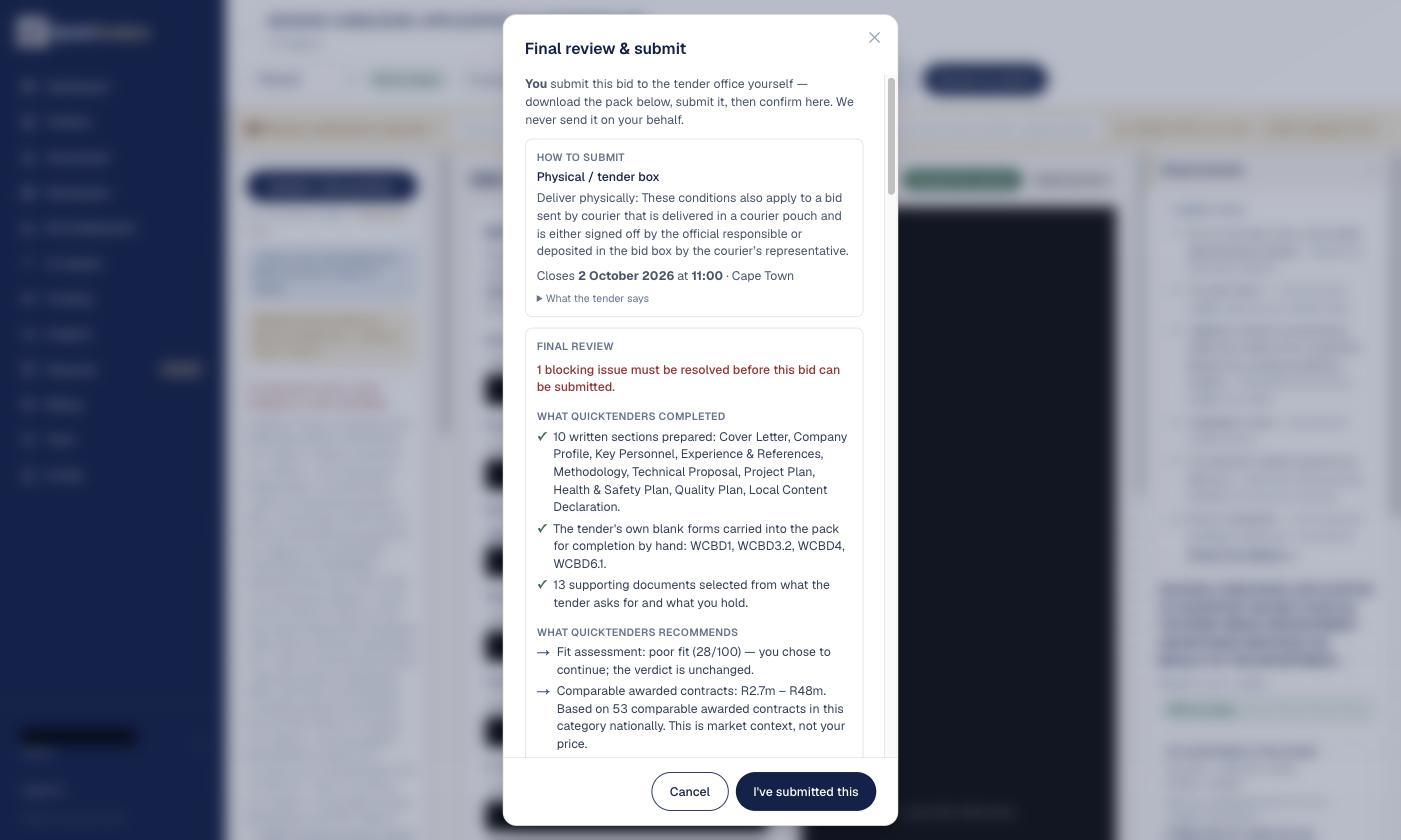
Print it or open it, sign every form that needs a signature, complete anything Final Review listed as yours, and lodge the bid by the method the tender allows — bid box, email or portal — before the closing time.
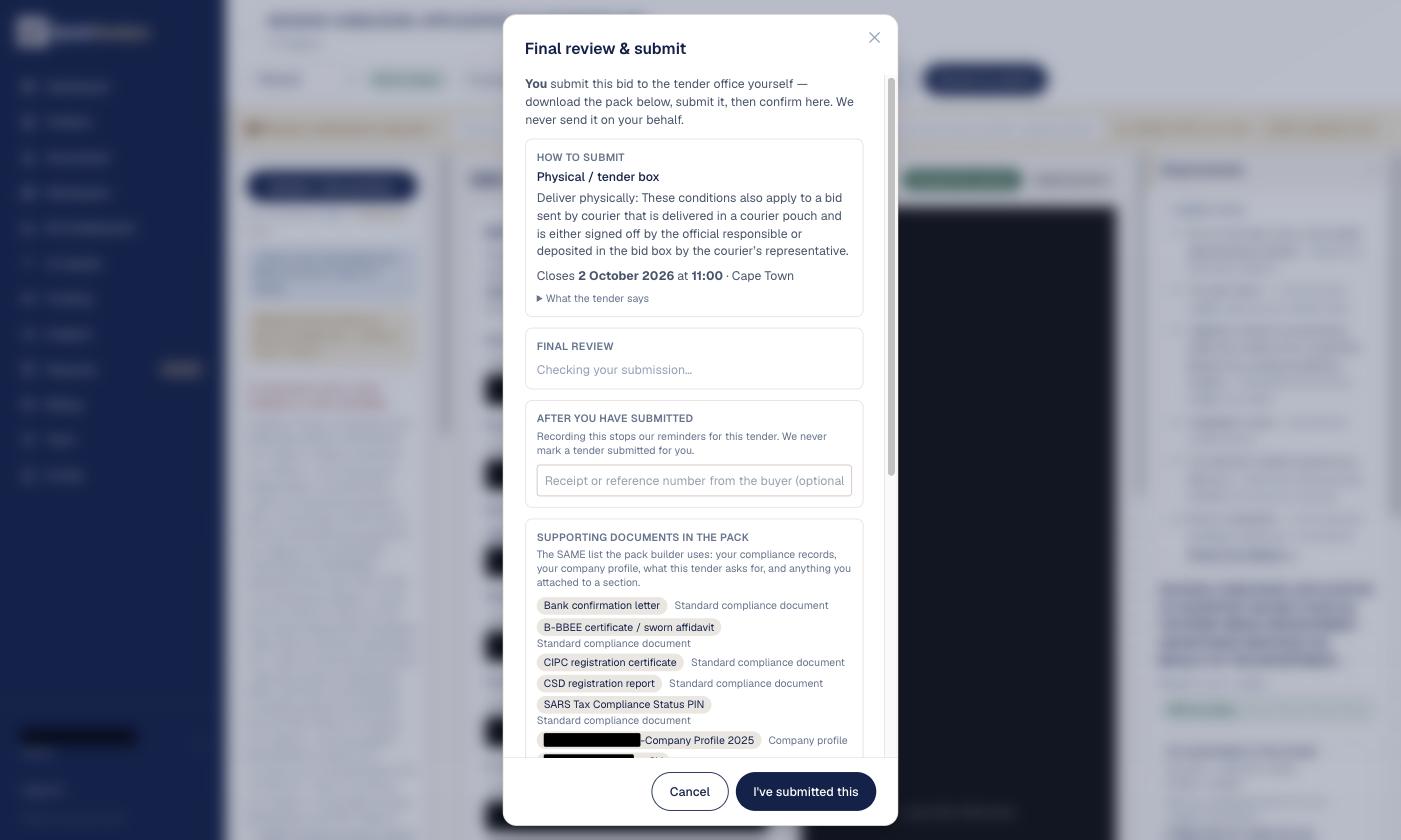
Step 19 — The submission boundary: QuickTenders prepares the pack. You submit it.
QuickTenders prepares the pack. You lodge the bid.
QuickTenders never sends a bid to a buyer. Once you have lodged it, confirm I've submitted this in the workspace and keep the buyer's receipt with it.
No. QuickTenders prepares the Submission Pack — your written response, the buyer's forms and your supporting documents in one PDF. You sign the forms and lodge the pack yourself by the method the tender allows, then confirm in the workspace that you have submitted it.
What does "Review Required" mean when I download?
Final Review found items that are still open — a form to sign, a bid question to confirm, a pricing decision to record, or a document that has expired. You can still download the pack after acknowledging the list; the acknowledgement is recorded, and the pack itself carries no such note.
Can I apply if QuickTenders says the tender is a poor fit?
Yes. Tender Fit is a warning about the tender's requirements, not a block. You choose whether to continue, and your decision is recorded with the workspace.